
Conditional styling with Links
Set an element’s fill, image or visibility from a card field.
How conditional styling works
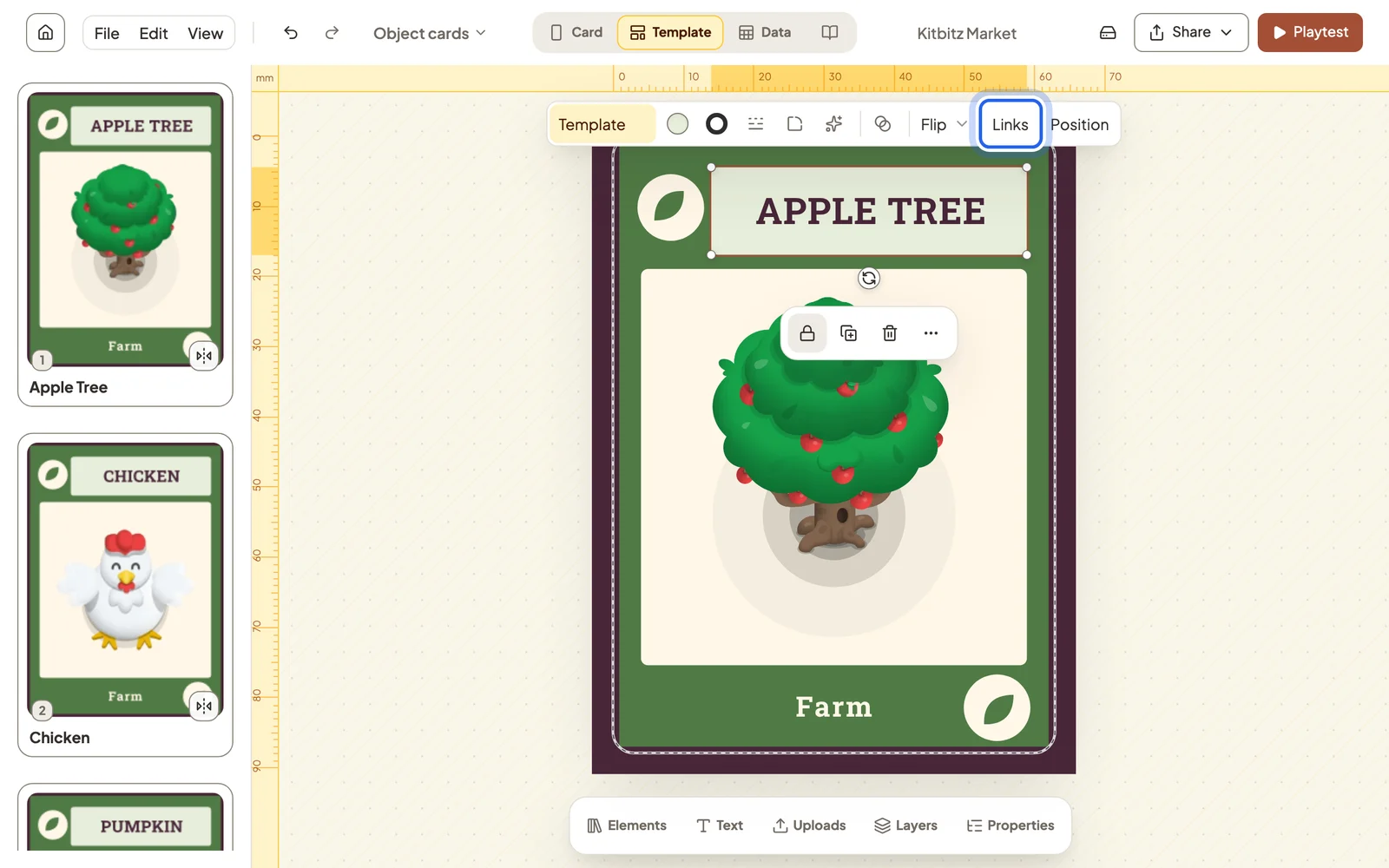
A link uses a card field to set an element’s appearance or visibility. In Kitbitz Market, the frame fill is green for Farm cards and blue for Home cards. Change the Family field in Data and the frame updates.
Open Links
Switch to Template. Parts of a template are often locked so they don’t move by accident. If the element is locked, select its padlock to unlock it first.
Select the element, then choose Links in the toolbar above the card.
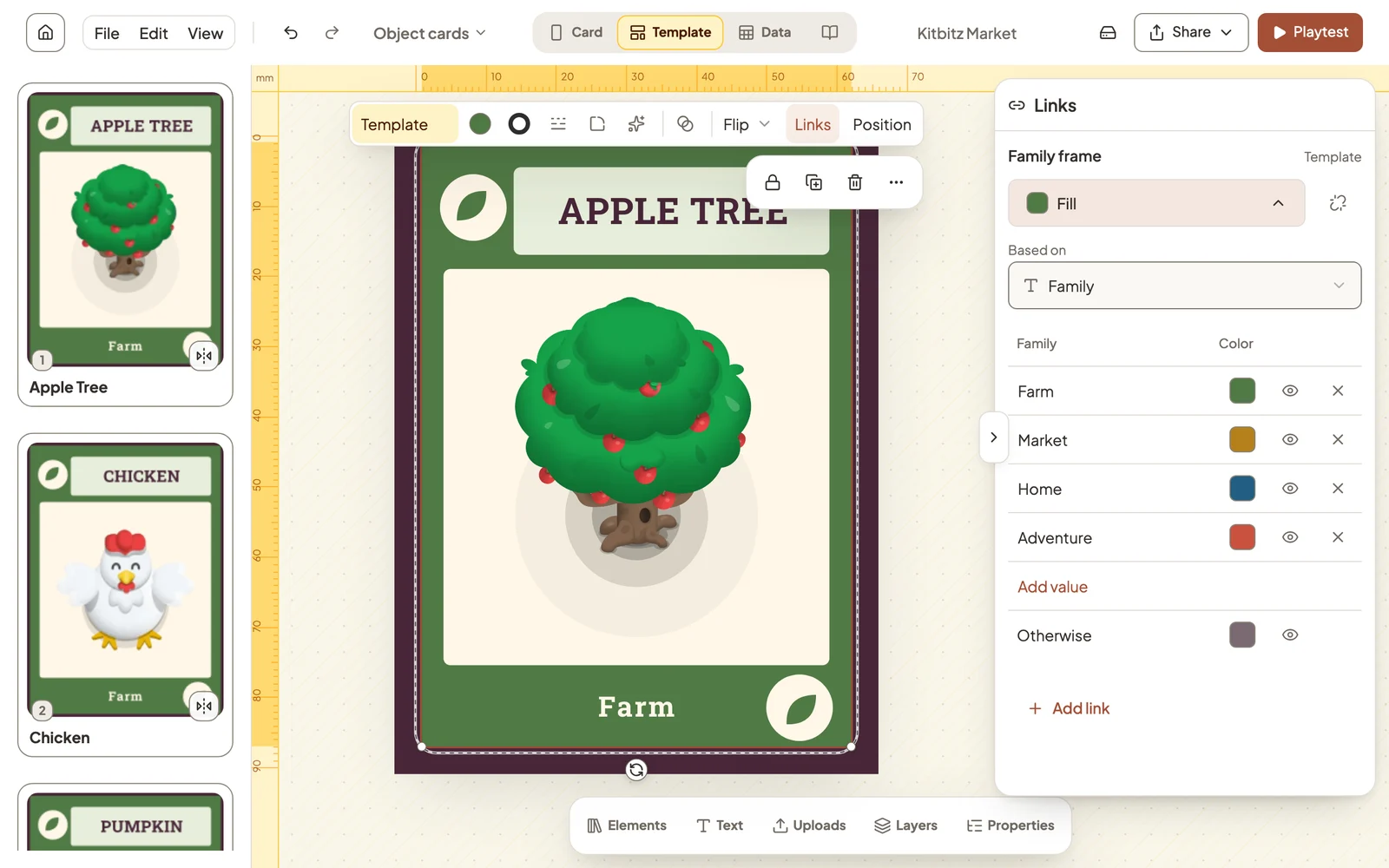
Set colours by field value
Choose Add link → Fill, or Text color for text. Pick the field under Based on, then assign a colour to each field value. Otherwise covers every value you haven’t listed.
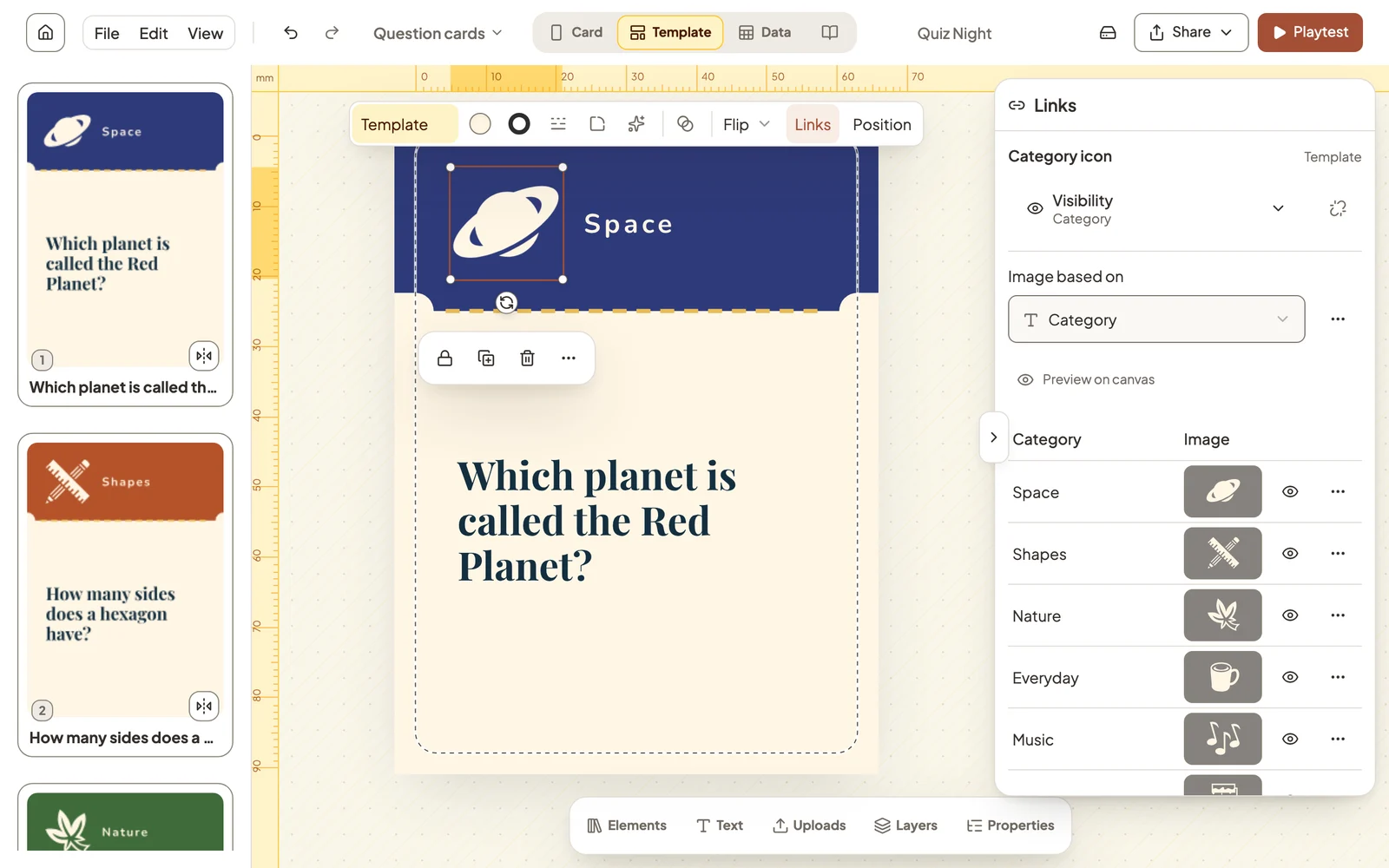
Swap images by field value
On an image frame, choose Add link → Image and pick a picture for each value. Quiz Night uses this to give every category its own icon.
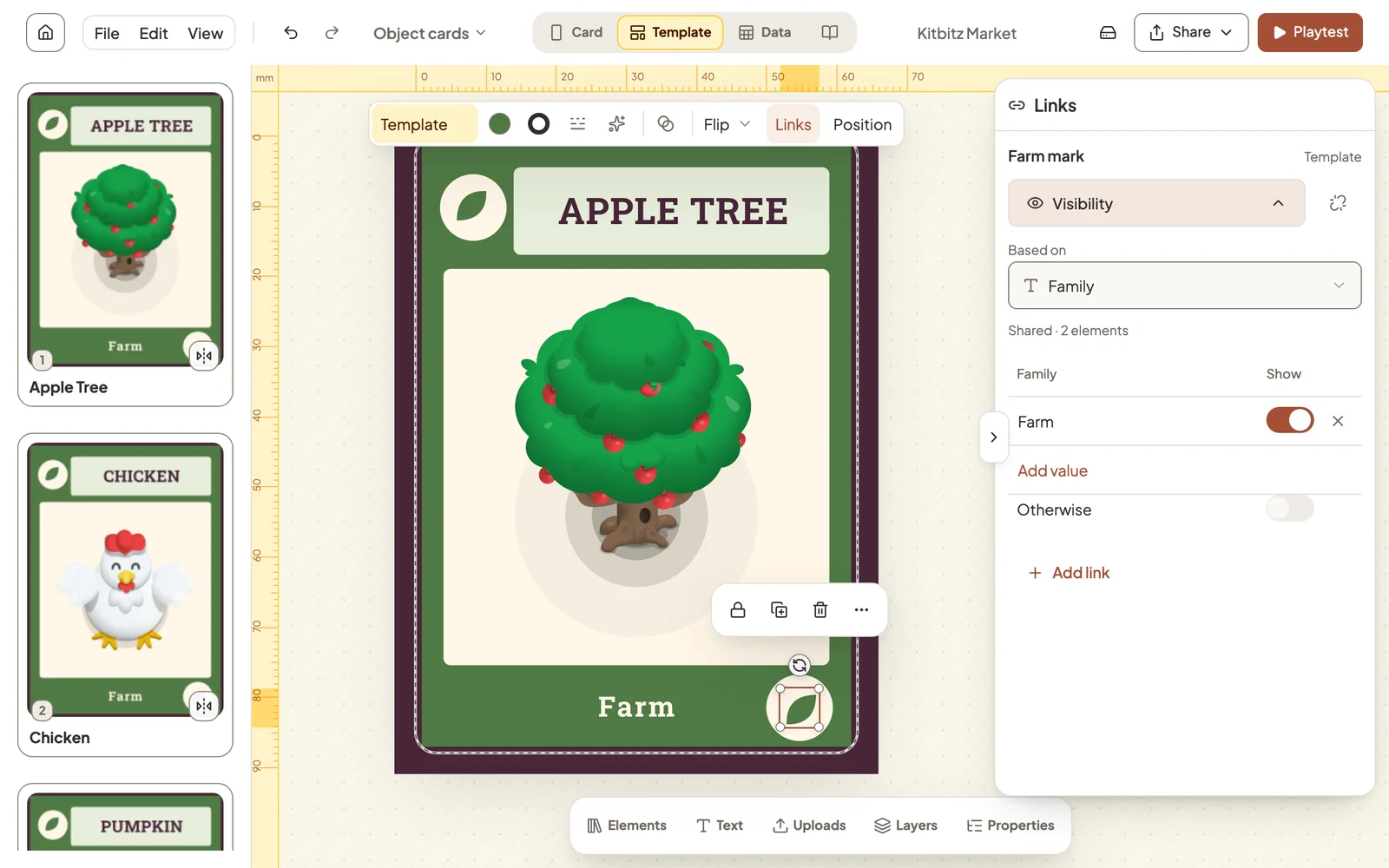
Set conditional visibility
Choose Add link → Visibility and switch on the values that should show the element. For example, the condition Family = Farm shows the Farm mark only on Farm cards.
Preview and inspect links
- The eye beside a value previews it on the card, so you can check each look without changing any card.
- A link made in Template applies to every card of that type.
- In Properties, a field’s menu has Used in…, which lists every element linked to it.
Still stuck?
Email [email protected] and tell us what you are trying to do.