
Use Dreamboard with Claude
Design your board or card game with Claude as a creative partner. Shape the idea in conversation, then review, playtest and print it in Dreamboard Studio.
What you can do
- Shape your idea. Describe the theme, mechanics and players you have in mind. Claude suggests directions, helps you pick a template to start from and builds a few sample cards for you to react to.
- Build your prototype. Bring your rulebook or card spreadsheet, or ask for changes to names, costs, rules text, quantities, icons and artwork. Review the rendered cards in a panel beside the conversation. Claude can undo a card change within seven days if nothing else has changed the project since.
- Playtest it. Claude opens your game on a table in your browser so you can play it with friends, then helps apply the changes you choose after testing.
- Take it to the table. Export print-and-play PDFs or card images from Studio, ready to print at home or send to a printer.
- Go digital. In Claude Code, turn your prototype into a fully rule-enforced digital game.
Dreamboard is free to start. A paid plan adds more cloud projects and storage, and professional print exports.
Connect Claude Desktop or web
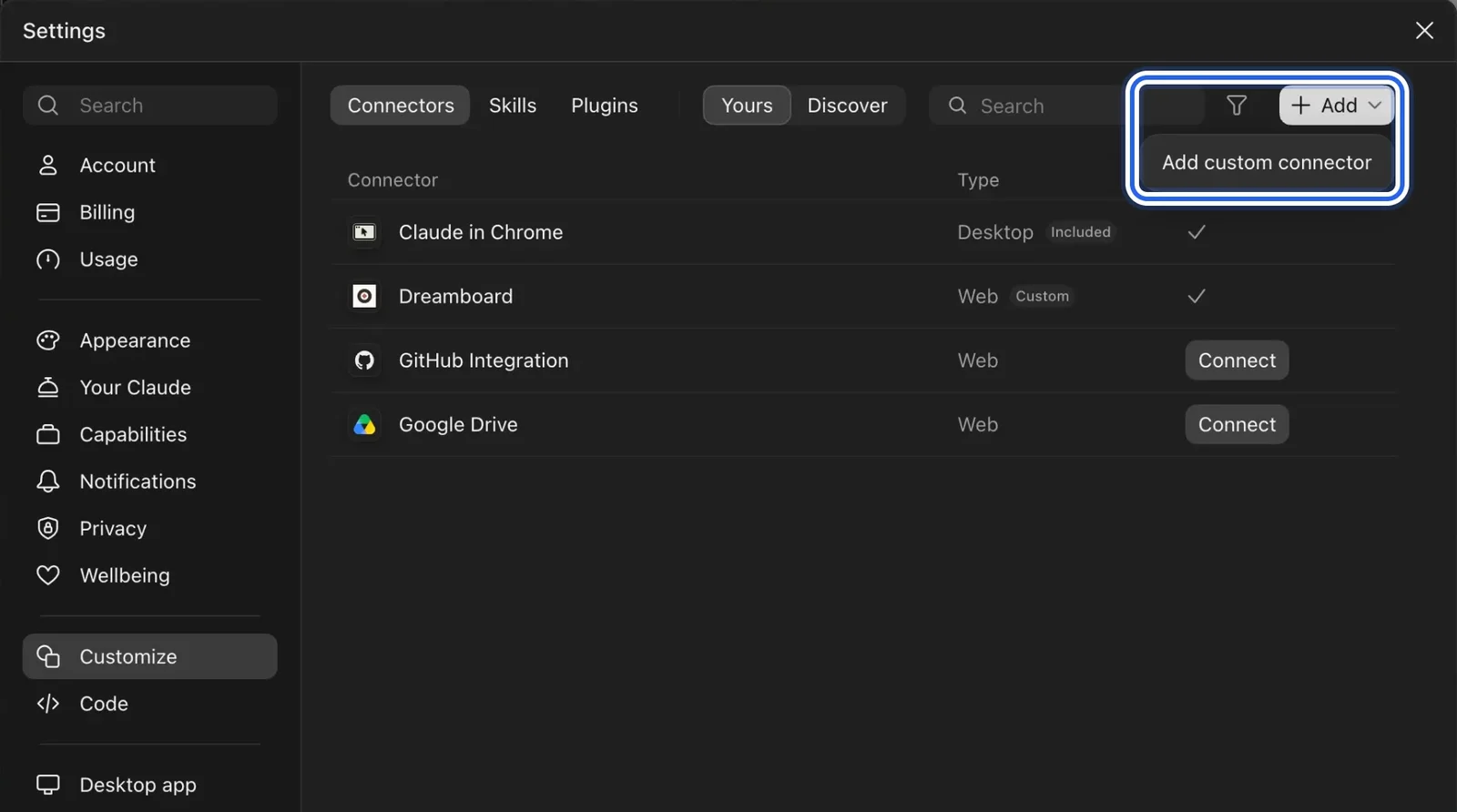
In Claude Desktop or on claude.ai, open Settings → Customize → Connectors. Select Add, then Add custom connector.
Enter the name Dreamboard and this URL, then select Continue:
https://api.dreamboard.games/mcp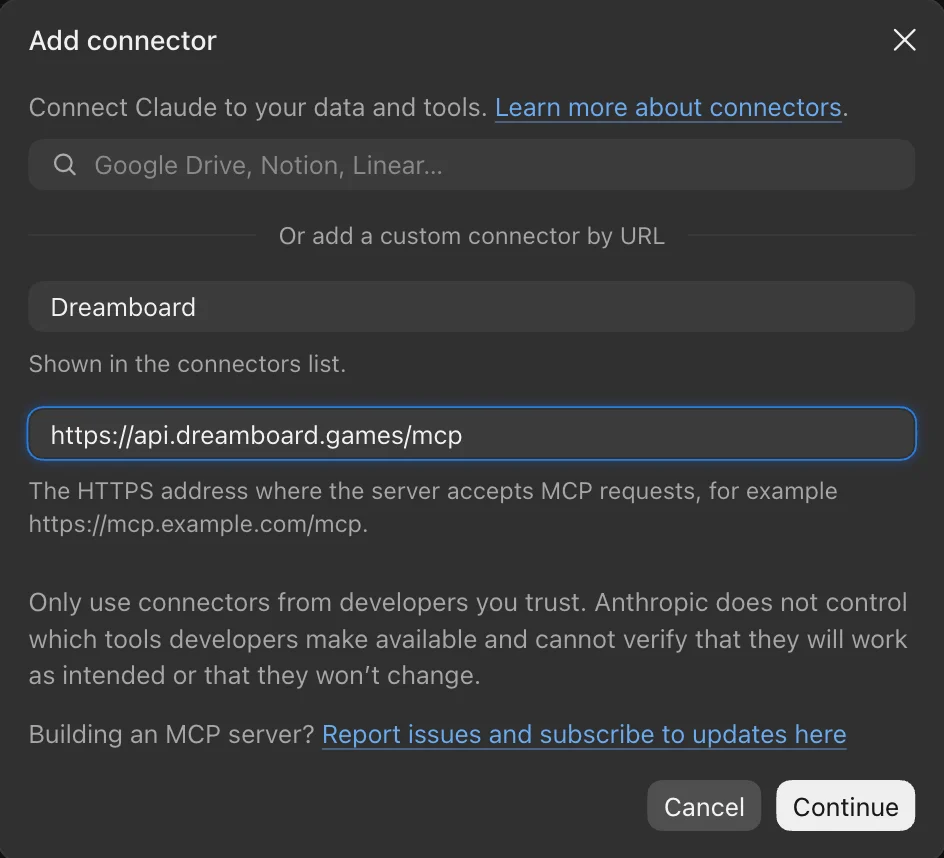
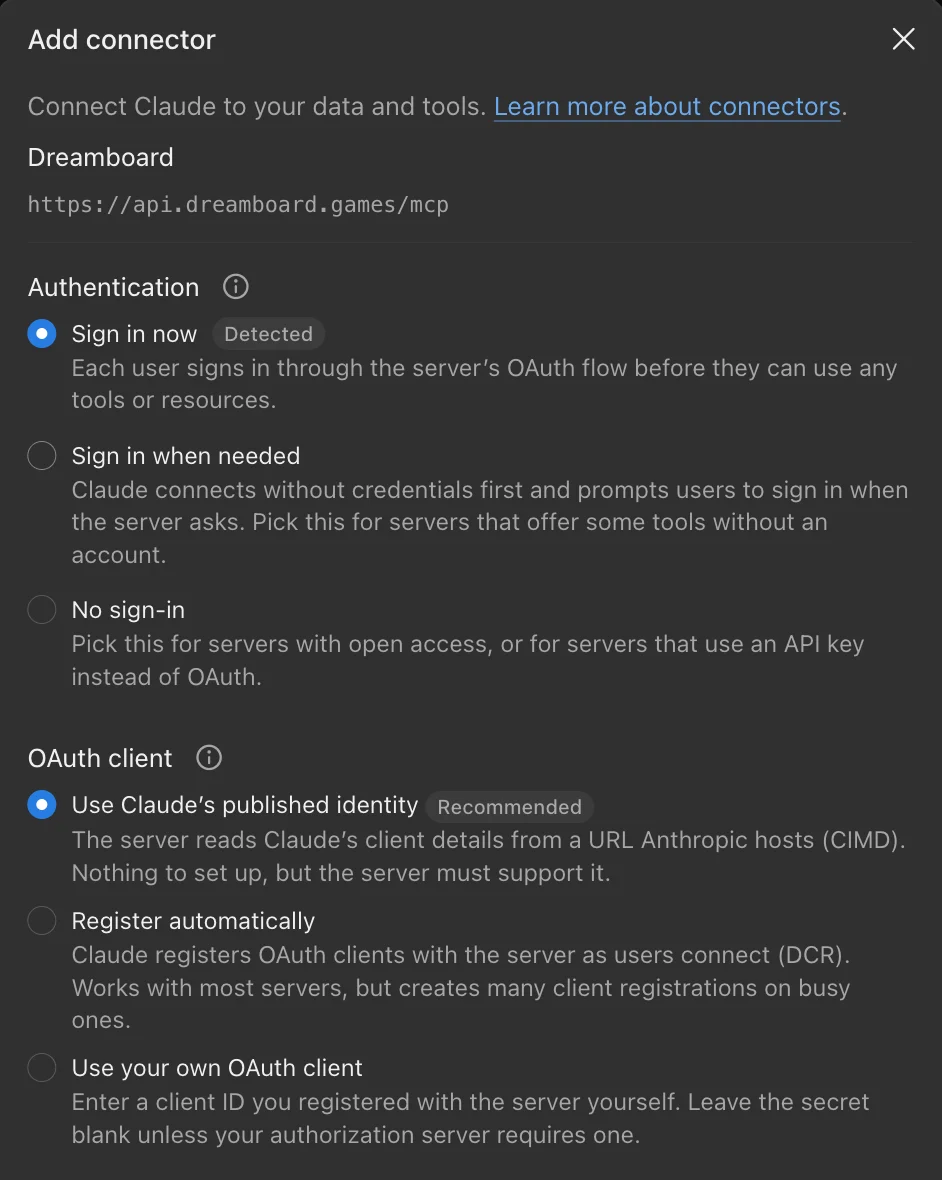
Keep the defaults, Sign in now and Use Claude’s published identity, then select Add. You don’t need any request headers.
- Sign in to Dreamboard Studio with the account that owns your projects, then approve access for Claude.
- In Studio, make sure cloud sync is on for the projects you want Claude to use. Claude sees only synced projects and works with their latest saved version.
On Team and Enterprise plans, an owner may need to add the connector for your organization first. You can also follow these steps from Settings → Connected apps in Studio.
Using Claude Code?
In Claude Code 2.1.275 or later, run:
/plugin install dreamboard --marketplace dreamboard-games/dreamboard-sdkThe plugin adds the Dreamboard connection and a skill for working on Dreamboard projects. Complete sign-in in your browser when Claude Code asks. Use Claude Code when you want to implement your rules as game code.
Things to try
- “I want to design a trick-taking game with a fantasy theme for 3–5 players. Pitch me a few directions, then help me build a small prototype deck.”
- “Here’s my rulebook and card spreadsheet. Find a template that fits and turn them into a playable prototype.”
- “Make my sample cards feel like a dark fairy tale: rewrite their names and flavour text, and find artwork and icons to match.”
- “My playtesters say the late game drags. Suggest three rule tweaks, then update the cards for the one I choose.”
- “Set up a table so I can playtest with friends tonight.”
- “Get my deck ready to print at home.”
- In Claude Code: “Implement a fully rule-enforced digital prototype of my game, so the table only allows legal plays.”
What Claude can access
Claude acts only on your own Dreamboard account and only through the requests you see in the conversation. Reading projects and templates does not change anything. Claude asks for your confirmation before changes that overwrite cards, change sync, or restore an earlier version.
Switching a project to Customise mode for game code is permanent, so Claude does it only when you ask and always confirms first. Unsaved edits in an open Studio tab are not visible to Claude until Studio saves them.
See the Privacy Policy for what a connected app receives.
Disconnect
Access expires 30 days after you approve it. To disconnect sooner, open Settings → Connected apps in Studio and remove Claude, or remove the connector in Claude.
Troubleshooting
- A project is missing: turn on cloud sync for it in Studio and let it finish saving. Projects in the bin or paused by a storage limit are not available.
- Claude says you are signed out: select Connect again for the Dreamboard connector and sign in.
- Anything else: email [email protected].