
Use auto layout
Set the direction, alignment, gap and padding for a layout that reflows as content changes.
How auto layout works
Auto layout arranges elements in a row or column with a consistent gap. When you add an icon to a row or a caption grows, the other elements move to make room.
Add auto layout
Select the elements, holding Shift to select more than one. Open the ⋯ menu beside them and choose Auto arrange, then Row or Column.
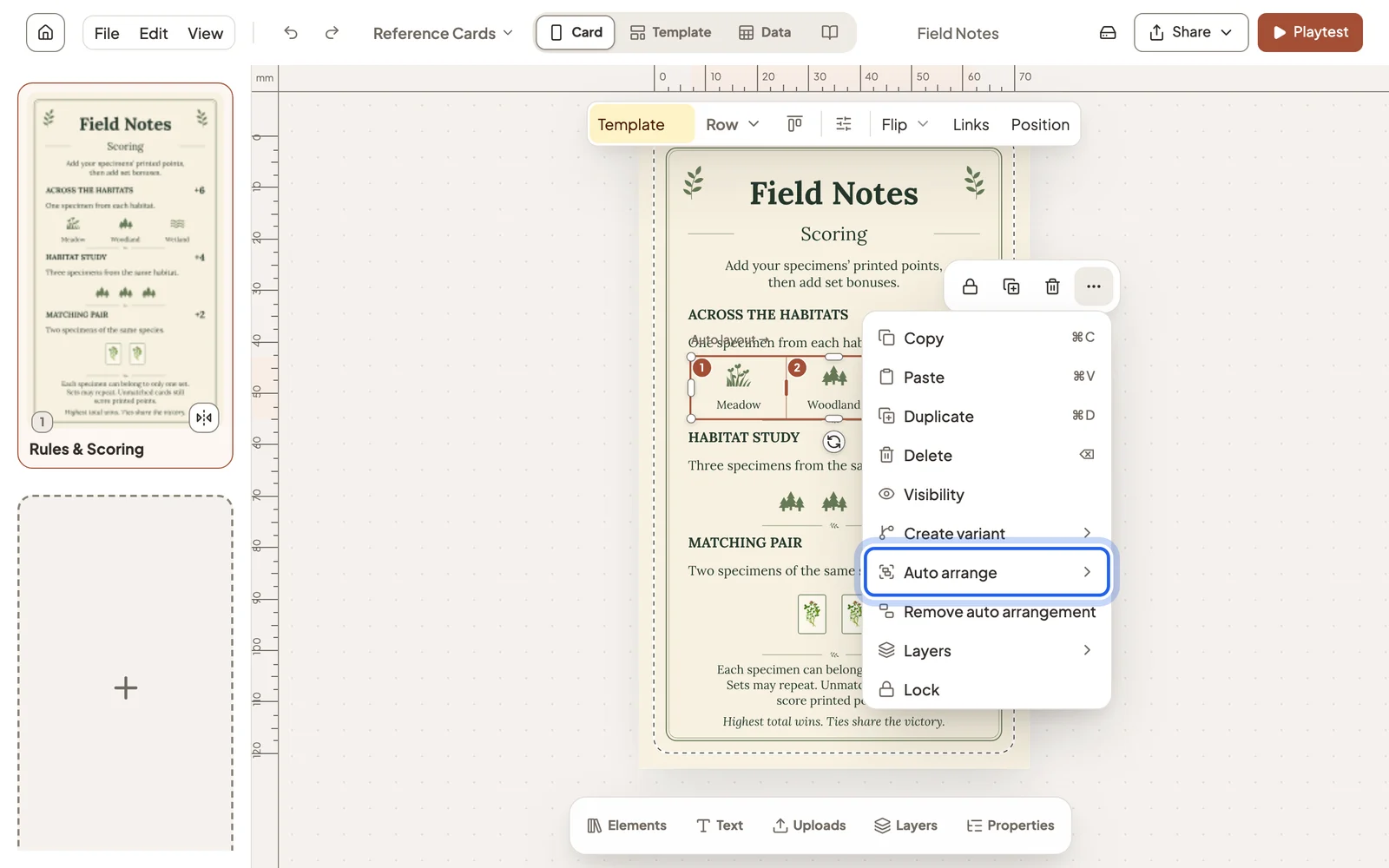
Remove auto arrangement in the same menu turns the elements back into separate pieces.
Set alignment, spacing and size
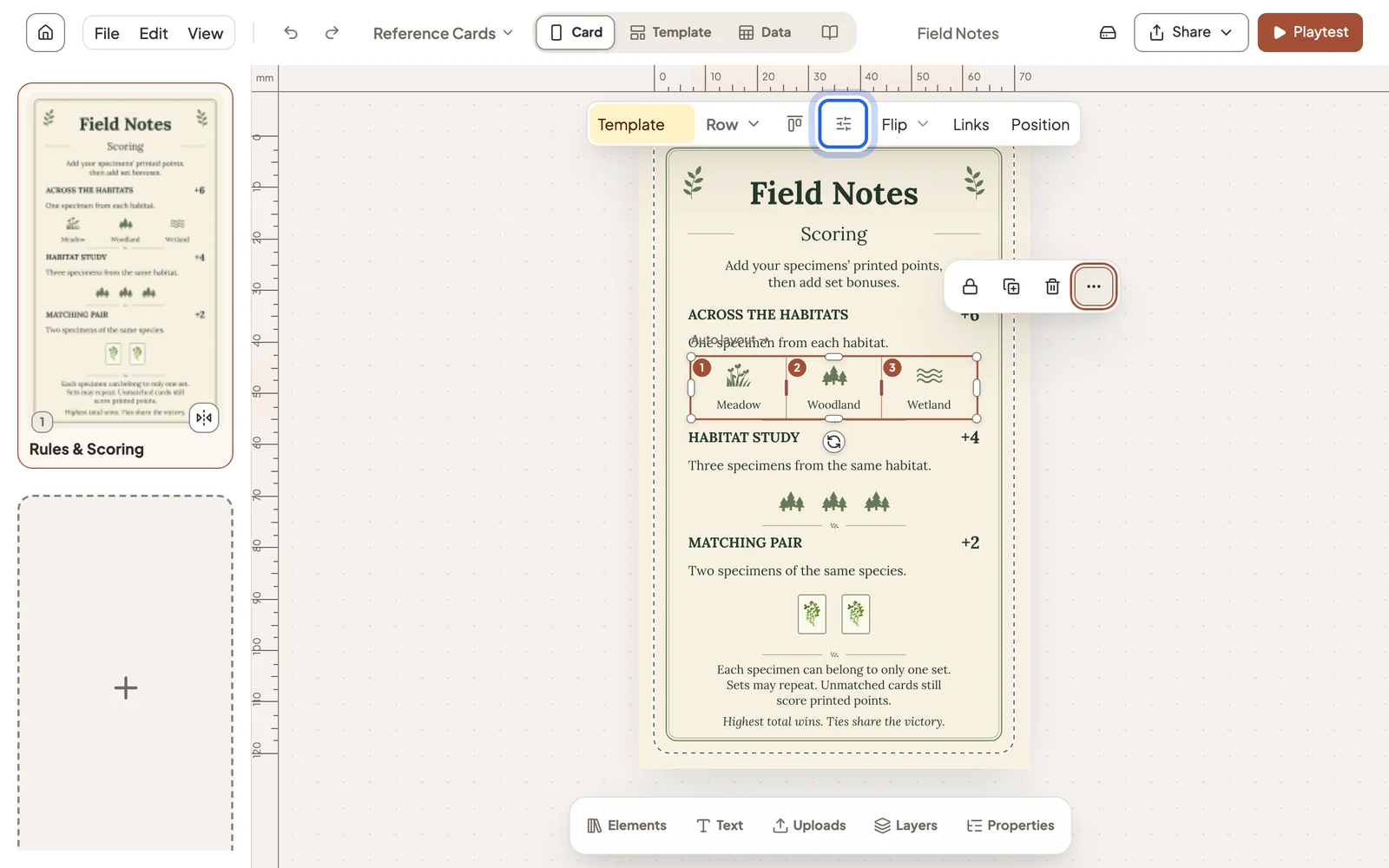
Select the arrangement. The toolbar switches between row and column and sets the alignment, and the Layout button opens every setting.
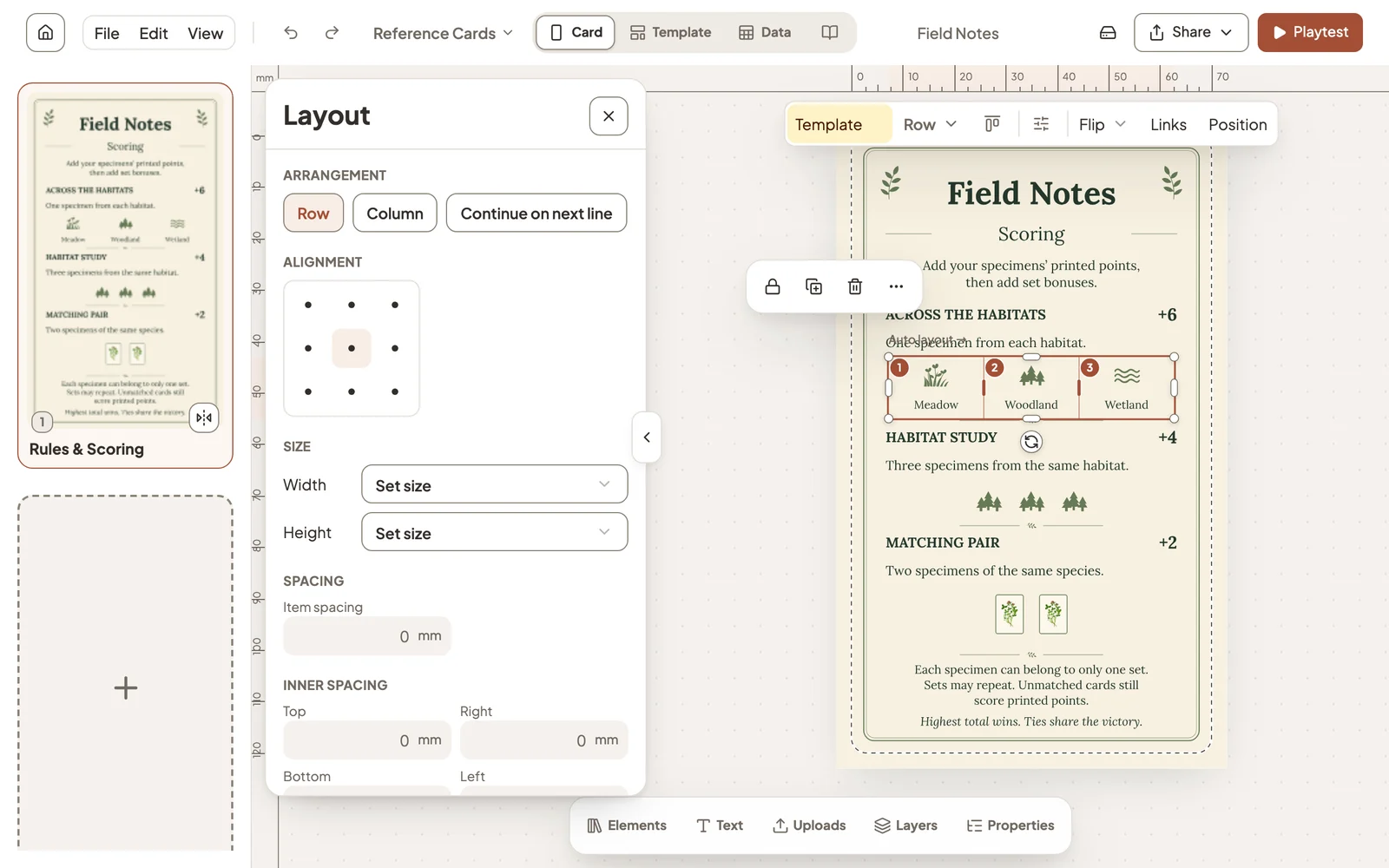
- Continue on next line wraps a row that runs out of room.
- Size can fit the content, stay a set size or use the remaining space.
- Spacing is the gap between items, and Inner spacing is the padding inside the arrangement.
Still stuck?
Email [email protected] and tell us what you are trying to do.